

Microsoft To Do is a solid personal task manager. But if you’ve ever tried to run a team off it, you’ve probably hit the same wall: tasks live in silos, there’s no real team visibility, and collaboration quickly turns into a chain of follow-up messages on WhatsApp or email. For individual to-do lists, it works fine. For coordinating work across a team? It was never really built for that.
The good news is that there are plenty of Microsoft To Do alternatives for teams that actually solve the right problems — shared task ownership, team communication, file organization, and progress visibility — without burying your team in feature overload. The tricky part is knowing which one fits how your team actually works.
This guide breaks down the best alternatives, what makes each one worth considering, and how to pick the right fit depending on your team’s size, workflow, and technical comfort level.
Why Teams Outgrow Microsoft To Do
Microsoft To Do was designed as a personal productivity app — a spiritual successor to Wunderlist. It lets you create lists, set due dates, and sync with Outlook tasks. For individual use, it’s clean and functional. But teams need more than a personal checklist tool.
Here’s where it consistently falls short for team use:
- No shared task assignment across multiple team members
- No project-level view or progress tracking
- No built-in team communication tied to tasks
- No file management or centralized document storage
- Limited visibility for managers who need to see what the team is working on
According to Harvard Business Review, one of the biggest drains on team productivity is unclear ownership of tasks and duplicated communication efforts — both of which are symptoms of using the wrong tools for team coordination. A personal task app used at team scale tends to make both problems worse, not better.
What to Look for in a Microsoft To Do Alternative for Teams
Before jumping to a list of tools, it helps to be clear on what your team actually needs. Not every team needs the same features, and the best alternative for a 12-person hybrid marketing team looks different from what works for a 60-person operations department.
Here are the core criteria worth evaluating:
- Shared task assignment: Can you assign tasks to specific people and track who owns what?
- Team visibility: Can managers see project status without asking for updates?
- Built-in communication: Is there a way to discuss work in context, without switching to email or messaging apps?
- Ease of adoption: Will non-technical team members actually use it?
- File and knowledge management: Can you attach files, share documents, and find things later?
- Pricing: Is it sustainable as your team grows?
The Best Microsoft To Do Alternatives for Teams in 2026
1. Morningmate
Morningmate is a lightweight work management tool built specifically for team coordination — not individual to-do lists. It combines task management, built-in team chat, and file organization into one workspace, making it a natural step up from Microsoft To Do without the steep learning curve of heavier tools like Jira or Asana.
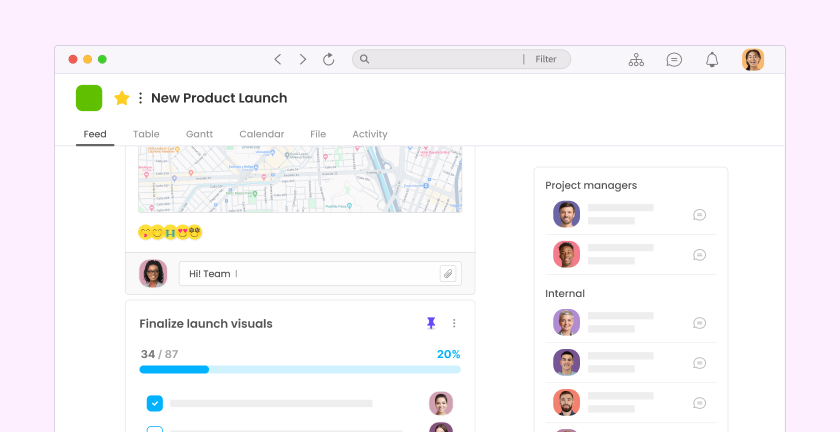
What makes Morningmate stand out among Microsoft To Do alternatives is its Feed view — a social-media-style project feed where your team can post updates, share files, and track tasks in a format that feels immediately familiar. There’s no onboarding presentation needed. If someone has used Instagram or Facebook, they can navigate the Feed without any hand-holding.
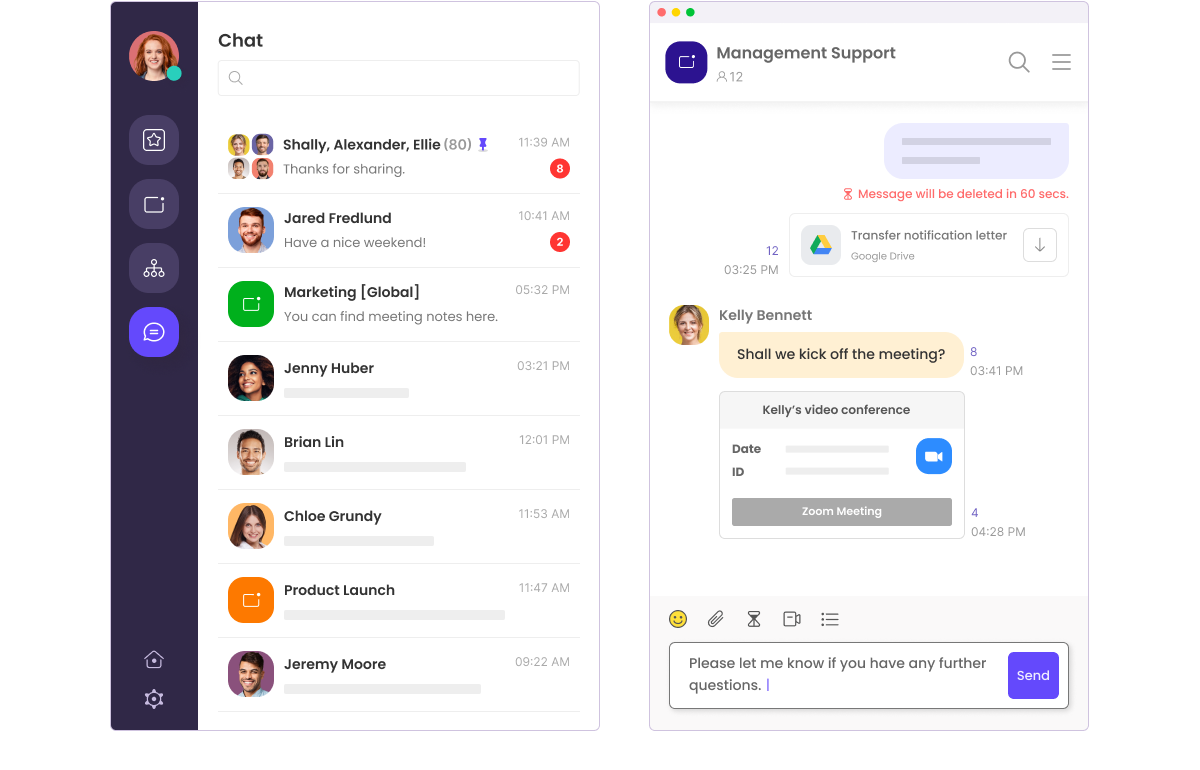
The built-in chat works like WhatsApp — direct messages, group chats, and file sharing all in one place — so your team doesn’t need to jump between a task tool and a separate messenger. For teams that currently live in WhatsApp for work conversations, this is a meaningful shift toward keeping work organized and searchable.
Morningmate is trusted by over 550,000 users globally, and it’s particularly well-suited for non-technical teams — operations, logistics, HR, hospitality, retail — where tool adoption is usually the biggest obstacle. You can explore how it compares to other options on the best team collaboration tools roundup.
Best for: Small to mid-sized teams (10–100 people) who want one simple workspace to replace email threads and personal messenger apps.
2. Trello
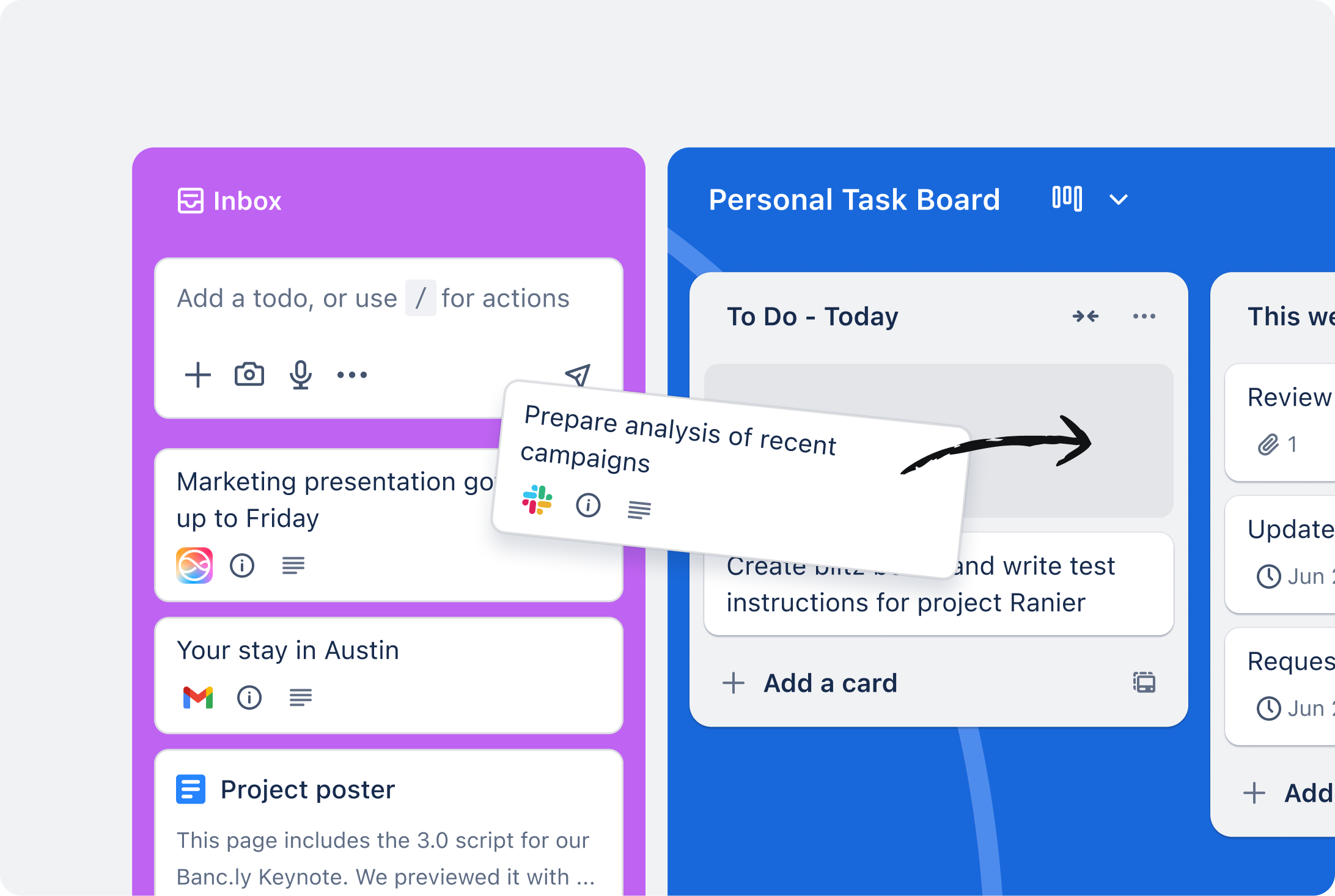
Trello is one of the most recognizable Microsoft To Do alternatives for teams, built around a Kanban board system. Cards represent tasks, and you drag them across columns to show progress. It’s visual, intuitive, and easy to get started with.
Trello works well for teams managing a steady flow of tasks with clear stages — content pipelines, hiring processes, product backlogs. Where it struggles is scale: as projects multiply and teams grow, the board-per-project model can get disorganized fast. It also lacks native team chat, so you’ll still need a separate communication tool.
Best for: Small teams with straightforward, visual workflows. Less suited for teams needing deep task hierarchies or integrated communication.
3. Asana
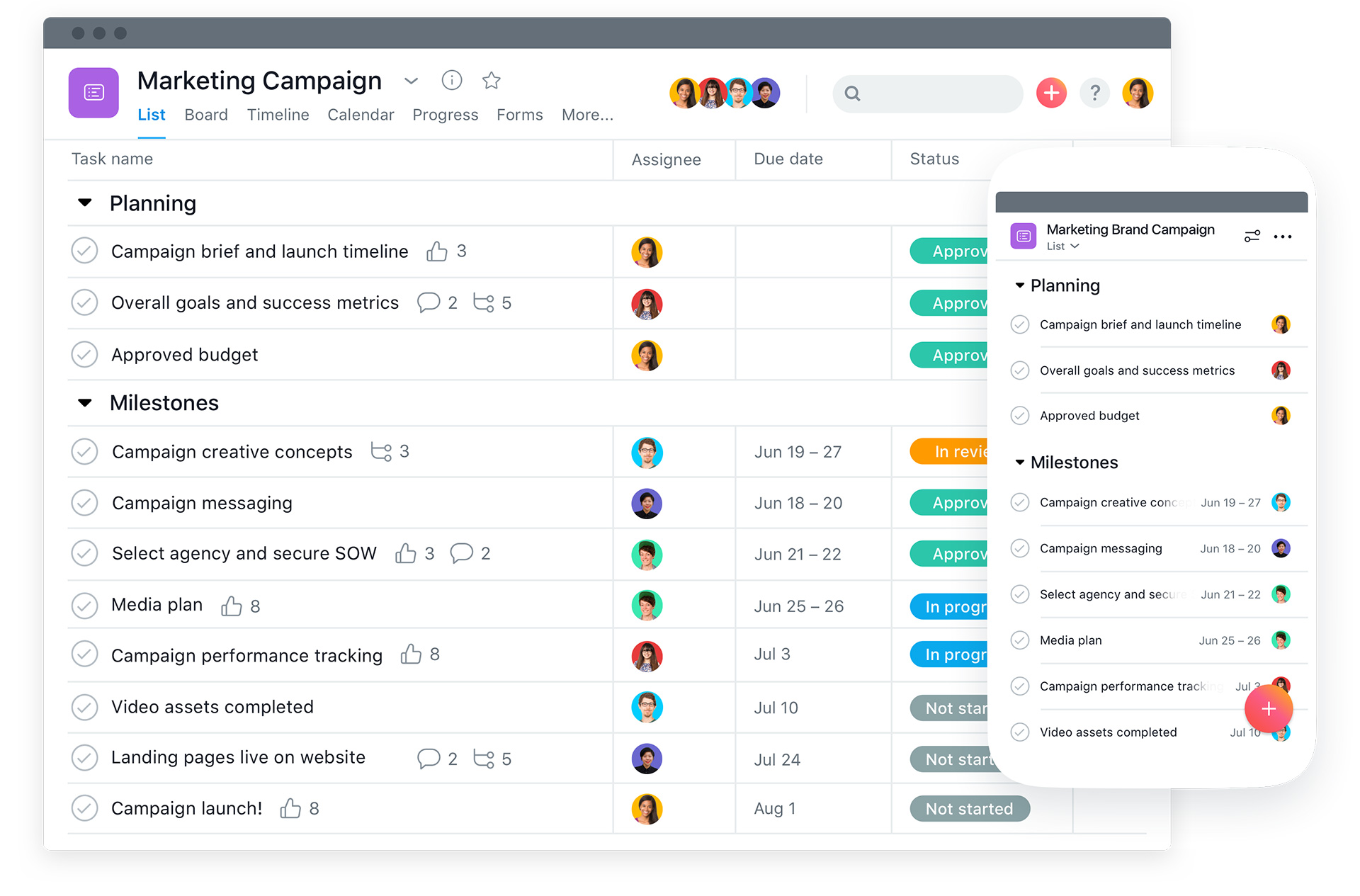
Asana is a robust project management platform with multiple views — list, board, timeline, and calendar. It’s a powerful Microsoft To Do alternative for teams that need structured project planning, dependencies, and reporting.
The trade-off is complexity. Asana has a significant learning curve, and teams without a dedicated project manager to set it up properly often end up using only a fraction of its features. Pricing also climbs quickly for growing teams. That said, for ops leads or project managers who need granular visibility and reporting, Asana delivers.
Best for: Mid-to-large teams with dedicated project managers and complex cross-functional projects.
4. ClickUp
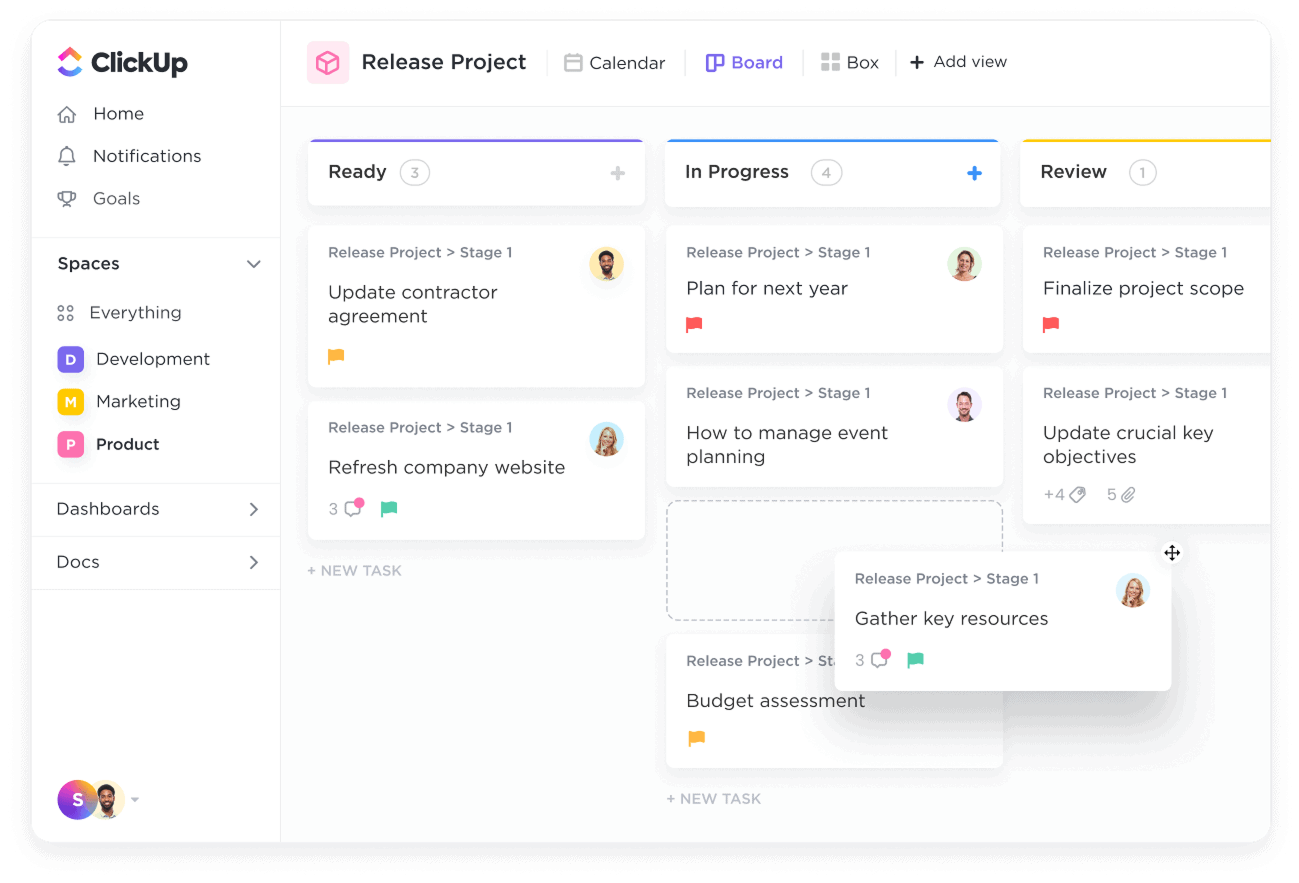
ClickUp markets itself as an all-in-one productivity platform — and it genuinely offers a massive feature set: tasks, docs, goals, time tracking, dashboards, and more. For teams that want to consolidate a lot of tools into one, it’s worth looking at.
The challenge with ClickUp is that the sheer volume of features can be paralyzing. Teams often spend more time configuring ClickUp than actually using it. It’s powerful in the right hands, but for non-technical teams or companies that just need the basics done well, it tends to be overkill.
Best for: Tech-savvy teams comfortable with customization who want a highly configurable workspace.
5. Notion
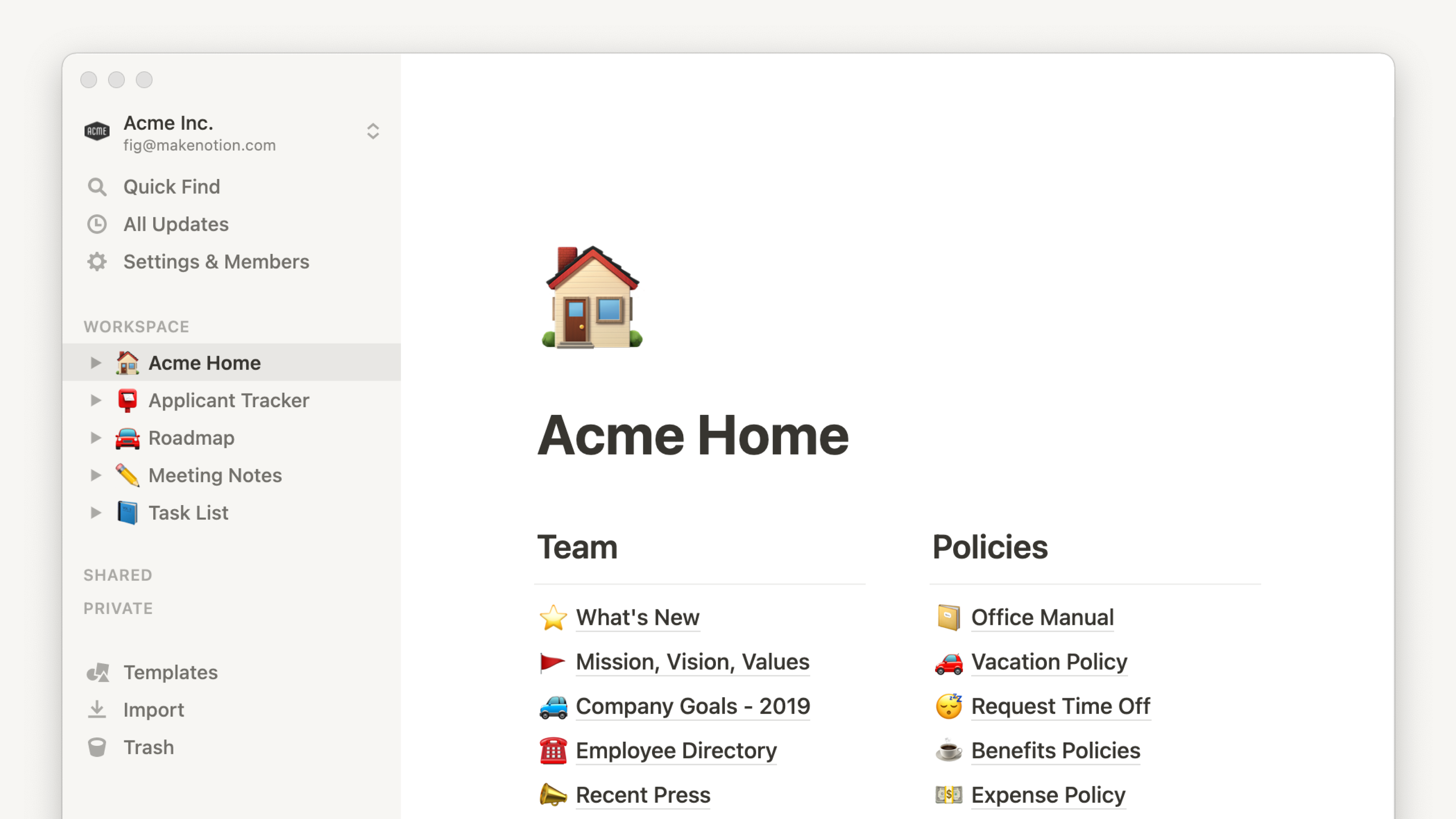
Notion is a flexible workspace that blends notes, databases, wikis, and task management. Teams use it as a knowledge base, project tracker, and internal documentation hub. It’s particularly popular with creative and product teams who value flexibility over structure.
As a Microsoft To Do alternative for teams, Notion’s weakness is that task management is secondary to its document-first design. Tracking who’s doing what and when can feel clunky without significant setup. It’s also not a communication tool — you’ll need Slack or another messenger alongside it.
Best for: Teams that prioritize knowledge management and documentation alongside lightweight task tracking.
6. Monday.com
Monday.com is a visual work OS with strong project tracking capabilities. It’s colorful, customizable, and popular with operations and marketing teams. Its dashboards and automations are genuinely impressive for teams managing multiple projects with a lot of moving parts.
The main friction point is cost — Monday.com becomes expensive quickly, especially at team sizes where you need advanced features. It also requires a meaningful setup investment before it delivers value. For smaller teams or those just starting to move beyond personal task apps, the price-to-value ratio may not make sense.
Best for: Mid-to-large teams with budget for a premium tool and dedicated time to set up and maintain workflows.
How to Choose the Right Alternative for Your Team
The right Microsoft To Do alternative depends less on which tool has the most features and more on which one your team will actually use consistently. A powerful tool that confuses half your team is worse than a simple one everyone adopts immediately.
Use this quick decision framework:
- Start with your team’s pain points. Are you struggling with task visibility, communication, file chaos, or all three? Match the tool to the actual problem.
- Consider technical comfort level. Non-technical teams — think HR, hospitality, logistics, retail — need tools with minimal setup and familiar interfaces. Technical teams can handle more complexity.
- Check if communication is built in. If your team still ends up on WhatsApp to discuss tasks, the tool isn’t doing its job. Look for options that include team chat natively.
- Run a real pilot. Don’t judge a tool by its demo. Give your team two weeks with actual work in it and see what breaks down.
- Watch adoption, not just features. After a month, check how many people are actually logging in and using it. A 90% adoption rate with a simple tool beats 30% adoption on a complex one every time.
McKinsey research consistently shows that the biggest barrier to new tool adoption isn’t training — it’s whether people see an immediate, personal benefit. That’s why ease of use and interface familiarity matter so much, especially for teams making the leap from something as simple as Microsoft To Do.
Signs Your Team Is Ready to Switch
Not sure if now is the right time to move away from Microsoft To Do? Here are clear signals that your team has outgrown it:
- You’re using WhatsApp or email to follow up on tasks that should be tracked in a tool
- Team members don’t know what others are working on without asking
- Files and decisions are scattered across chat threads, email, and personal drives
- Deadlines are missed because no one had visibility on what was due
- You’re managing more than 5–6 people and the coordination effort is becoming a job in itself
If two or more of these sound familiar, it’s time to move to a tool built for team collaboration — not just personal task management. The right communication and task tool combination can remove a surprising amount of management overhead.
Making the Transition Without Disrupting Your Team
Switching tools mid-project is one of the fastest ways to lose your team’s trust in new systems. A smoother approach is to migrate during a natural transition point — the start of a new quarter, a new project kick-off, or after a team review.
Here’s a practical migration checklist:
- Audit current tasks and identify what’s active vs. stale — don’t migrate everything blindly
- Set up the new tool’s structure before inviting the team (workspaces, projects, channels)
- Run a 30-minute walkthrough with the team — keep it short and focused on the daily workflow
- Set a hard cutoff date for the old tool so you’re not running two systems in parallel
- Designate one person to answer questions for the first two weeks
For teams moving to Morningmate, the transition is typically faster than with heavier tools because the interface is already familiar. The Feed view works like a social media timeline, and the chat mirrors WhatsApp — so there’s very little to explain. Most teams are functional within a day or two of setup, which matters a lot when you can’t afford a week of disrupted productivity.
According to a Gallup State of the Global Workplace report, employee engagement drops sharply when teams feel their tools create friction rather than reduce it. Choosing a tool your team actually wants to use isn’t a soft concern — it directly affects how much work gets done and how well your team works together.
Final Thoughts on Finding the Right Fit
Microsoft To Do isn’t a bad tool — it’s just a personal tool being asked to do a team job. If your team has grown past the point where individual task lists are enough, upgrading to a proper team collaboration tool isn’t optional. It’s how you get visibility back, reduce the noise in your inbox and chat threads, and actually trust that things are moving forward.
The best Microsoft To Do alternative for your team is the one your whole team uses — not just the one with the longest feature list. Start simple, prioritize adoption, and choose something that fits the way your team already thinks about work. The coordination gains will follow.